How to Choose the Right Touchscreen Kiosk for Your Business (2026 Buyer’s Guide)
A Touchscreen Kiosk lets customers order, pay, check in or find information without waiting for staff. But the right choice depends on more than screen size and price. This guide walks you through how to choose a touchscreen kiosk based on your use case, installation environment, peripherals and software, plus what to ask a manufacturer before you buy.
Key Takeaways
- Define the task first (ordering, payment, check-in, feedback or information). It decides your hardware and software.
- Match the enclosure and display to the environment. Outdoor use needs a sunlight-readable screen and weather protection.
- Pick a form factor by available space: wall-mounted, freestanding or countertop.
- Add only the peripherals you need, such as a printer, payment terminal or scanner.
- Software matters as much as hardware: look for remote updates, monitoring and integrations.
- Choose a manufacturer that offers customization, installation and after-sales support.
What Is a Touchscreen Kiosk?
A touchscreen kiosk is a self-service system that lets users access information, place orders, make payments or check in through a touch-enabled display, without staff assistance. It combines a screen, computing hardware, an enclosure and software and can include printers, scanners and payment terminals.
How is it different from digital signage or a POS? Digital signage displays content but is usually not interactive. A POS terminal is operated by staff. An interactive touch screen kiosk is operated directly by the customer.
Step 1: Define What the Kiosk Must Do
Common uses include:
- Visitor and customer check-in
- Food and menu ordering
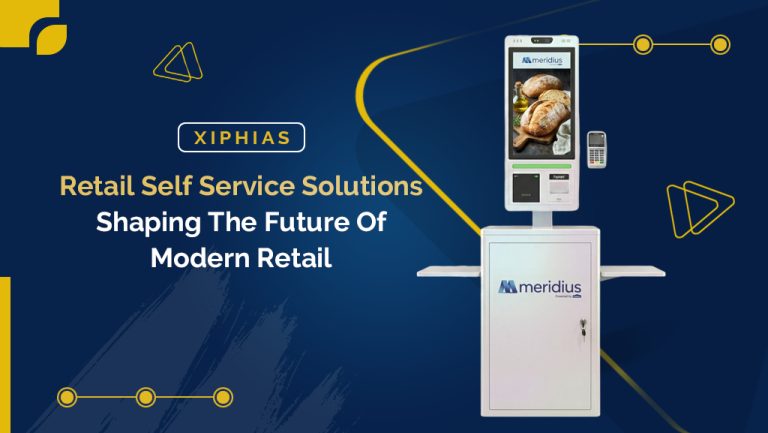
- Cashless payments and bill payments
- Customer feedback
- Information and wayfinding
- Ticketing and patient registration
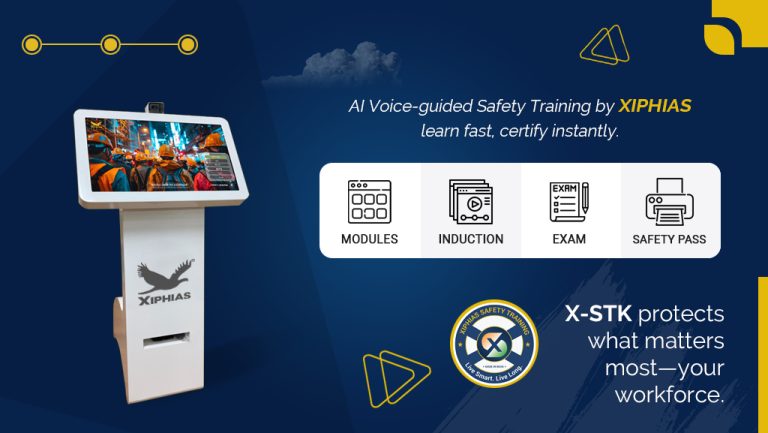
- Employee and safety training
A payment kiosk needs a payment terminal and usually a printer. An information kiosk may need only a responsive display and a simple interface. Write down the top three tasks before you compare models.
Step 2: Consider the Installation Environment
| Factor | What to look for |
|---|---|
| Indoor, low traffic | Standard enclosure, capacitive display |
| High traffic | Toughened glass, rugged metal enclosure |
| Outdoor | Sunlight-readable display (typically 1,000+ nits), weatherproof housing, temperature management |
| Dust and humidity | Sealed enclosure with a suitable IP rating |
| Public spaces | Vandal-resistant build, lockable access, secure mounting |
| Accessibility | Reachable screen height, clear contrast, large touch targets |
The environment decides the enclosure, display and cooling you need.
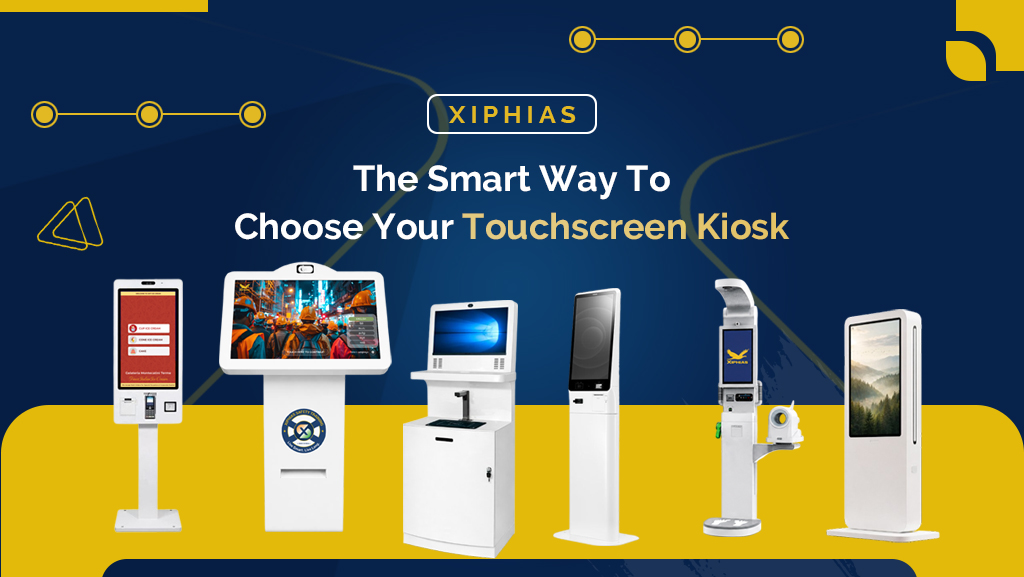
Step 3: Choose the Right Form Factor
| Form factor | Best for | Trade-off |
|---|---|---|
| Wall-mounted | Corridors, reception areas, tight spaces | Fewer peripheral options |
| Freestanding | High-traffic areas, larger screens, more peripherals | Needs floor space |
| Countertop | Reception desks, service counters, assisted self-service | Smaller screen |
Wall Mounted Touch Screen Kiosk: When Does It Make Sense?
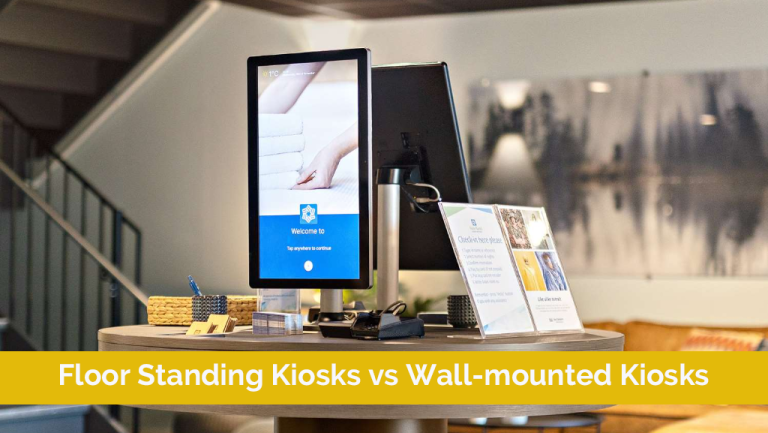
A wall mounted touch screen kiosk saves floor space and suits hospitals, offices, campuses and corridors. Choose it when the kiosk mainly displays information or handles simple check-ins. If you need a printer, card reader and scanner together, a freestanding unit is usually the better fit.
Step 4: Check the Touch Technology and Display
- Capacitive touch: Responsive and smooth, familiar from smartphones. The best choice for most indoor kiosks.
- Infrared touch: Works with gloves and suits larger screens.
- Screen size: Smaller screens suit countertop and feedback units. Larger screens suit freestanding, wayfinding and ordering kiosks.
- Brightness: Indoor screens need far less brightness than outdoor ones, which need sunlight-readable panels.
A touch screen display kiosk is only as good as its panel, so ask for specs on brightness, resolution and touch response, not just screen size.
Step 5: Add the Right Peripherals
Do you need a touch screen kiosk with a printer? Yes, if users need a physical receipt, token, ticket, badge or confirmation. If a digital confirmation is enough, skip the printer to save on cost and maintenance.
Other peripherals to consider:
- Card and contactless payment terminals
- QR and barcode scanners
- RFID readers
- Cameras
- Biometric devices
Choose peripherals based on the workflow, not to make the kiosk look more capable.
Touch Screen Kiosk for Online Payment: What to Look For
“Online payment” here means digital, cashless payment. Whatever the setup, the kiosk should make paying quick and secure. Typical options include:
- Card and contactless payments
- UPI and other QR-based payments
- Digital wallets
- Payment gateway integration
- POS or billing system integration
Confirm payment security and compliance requirements (such as EMV and PCI DSS) with your payment provider before deployment. The kiosk should also handle failed or timed-out payments gracefully and show a clear confirmation or receipt.
Touch Screen Ordering Kiosks for Restaurants
A touch screen ordering kiosk lets customers browse the menu, customize items, pay and send the order straight to the kitchen. A well-designed touch screen ordering system for a restaurant can reduce queues at the counter, cut order errors and give staff more time for service.
When evaluating a touch screen menu ordering system, check that it supports:
- Easy menu updates for prices, items and offers
- Modifiers and combos
- Kitchen display or printer integration
- Payment integration
- Sales reporting
A touchscreen ordering kiosk works best for quick-service restaurants, food courts, cafés and high-volume counters.
Customer Feedback Touch Screen Kiosk
Can a touchscreen kiosk be used for customer feedback? Yes. A customer feedback touch screen kiosk captures opinions right after the interaction, when they are freshest. Place it near store exits, reception areas, hospital counters, restaurants and service desks.
To get higher response rates:
- Ask one to three questions
- Use large buttons, ratings or emojis instead of typing
- Add an optional comment field
- Report results in a dashboard
Touch Screen Kiosk for Tourism
A touch screen kiosk for tourism can provide maps, attraction information, event listings, transport details and multilingual guidance at airports, railway stations, hotels, museums and heritage sites. Look for offline-capable content, multilingual support, durable enclosures for public use and easy remote updates for seasonal information.
Don’t Overlook the Software
Hardware gets the attention, but software controls the user experience and daily management. Look for:
- Remote content updates: change menus, forms and messages without visiting the site
- Kiosk-mode lockdown: prevents users from leaving the app or accessing the operating system
- Remote monitoring: track uptime, peripheral status and faults
- Integrations: connect to your billing, CRM, appointment or ERP systems
- Usage reporting: understand what users do and where they drop off
- Multilingual and accessible interface: important for diverse user groups
Where Are Touchscreen Kiosks Used?
| Industry | Common uses |
|---|---|
| Retail | Self-service, product information, feedback |
| Healthcare | Patient check-in, registration, payments |
| Hospitality and restaurants | Ordering, check-in, guest services |
| Manufacturing | Safety training, employee workflows |
| Banking | Customer services, transactions |
| Tourism | Digital information, maps, wayfinding |
Example Scenario: Choosing a Kiosk for a Hospital Reception
This is an illustrative scenario, not a customer case study.
Consider a 200-bed hospital where patients queue at the registration desk every morning. The goal is to shorten waiting times and reduce front-desk workload.
- Task: patient check-in, registration and payment of consultation fees
- Environment: indoor, high footfall, near the main entrance
- Form factor: freestanding kiosk, because it needs a printer, card reader and barcode scanner together
- Peripherals: thermal printer for tokens, payment terminal, QR/barcode scanner
- Software needs: integration with the hospital management system, multilingual interface, kiosk-mode lockdown
- What to measure: average check-in time, queue length at peak hours, number of registrations completed without staff help
Working through the same questions for your own business gives you a clear specification to share with a manufacturer.
How to Choose a Touch Screen Kiosk Manufacturer
If you’re comparing touch screen kiosk manufacturers in India or anywhere else, the manufacturer often matters more than the model. A good touch kiosk manufacturer should offer:
- Customization: enclosure, branding, screen size and peripherals built to your requirements
- In-house design and manufacturing: better quality control and faster changes
- Software support: a kiosk application or integration with yours
- Installation and after-sales service: including spares, warranty and on-site support
- Proven deployments: references or case studies in your industry
- Compliance: relevant safety and payment standards
Ask for a demo unit or a pilot before placing a bulk order.
What Affects the Cost of a Touchscreen Kiosk?
Pricing varies widely. The main factors are:
- Screen size and display type
- Enclosure material and durability
- Indoor vs outdoor build
- Number and type of peripherals
- Software licensing and customization
- Installation, training and annual maintenance
A lower upfront price can mean higher maintenance costs later, so compare total cost of ownership, not just the purchase price.
Touchscreen Kiosk Buying Checklist
- What task will it perform?
- Where will it be installed (indoor, outdoor, wall, floor or counter)?
- How many users will use it each day?
- Which peripherals are required?
- Does it need payment functionality?
- Which systems need integration?
- Who will monitor and maintain it?
- Does the manufacturer provide support after installation?
Frequently Asked Questions
What is a touchscreen kiosk used for?
A touchscreen kiosk is used for self-service tasks such as check-in, ordering, payments, feedback, ticketing, information and wayfinding.
How much does a touchscreen kiosk cost?
The cost depends on screen size, enclosure, peripherals, software and whether it is for indoor or outdoor use. [Add your price range or invite readers to request a quote.]
What is the difference between a kiosk and digital signage?
Digital signage displays content with little or no interaction. A kiosk lets users interact directly to complete tasks.
Can touchscreen kiosks be used outdoors?
Yes, with a sunlight-readable display, weatherproof enclosure and proper temperature management.
What payment methods can a kiosk accept?
Depending on setup: cards, contactless, UPI and other QR payments and digital wallets, connected through a payment gateway or POS.
Do I need a touch screen kiosk with a printer?
Only if users need a physical receipt, token, ticket or badge.
Are wall-mounted kiosks better than freestanding ones?
Wall-mounted kiosks suit tight spaces and simple tasks. Freestanding kiosks suit larger screens and more peripherals.
Final Thoughts
The right touchscreen kiosk fits your workflow, environment and users. Define the task, choose a suitable form factor and peripherals, plan the software and integrations and work with a manufacturer that supports you after installation.
Ready to find the right kiosk for your business? [Request a quote / Talk to our kiosk experts / Book a free demo]